> ## Documentation Index
> Fetch the complete documentation index at: https://docs.spectate.net/llms.txt
> Use this file to discover all available pages before exploring further.
# Alerting
> Receive notifications when an event of incident occurs.
With Spectate's alerting, you can receive notifications when an event of incident occurs. You can configure notification channels to send notifications to your team's Slack, Discord, email, or even your phone.
## Integrations
### Adding an integration
Adding an integration is simple. Go to `Integrations` in the sidebar and you'll land on the `Available integrations` page. From here, click on `Configure` next to the integration you want to add.
We are always looking to add more integrations. If you have a suggestion, please suggest it on our [roadmap](https://roadmap.spectate.net).
### Managing an integration
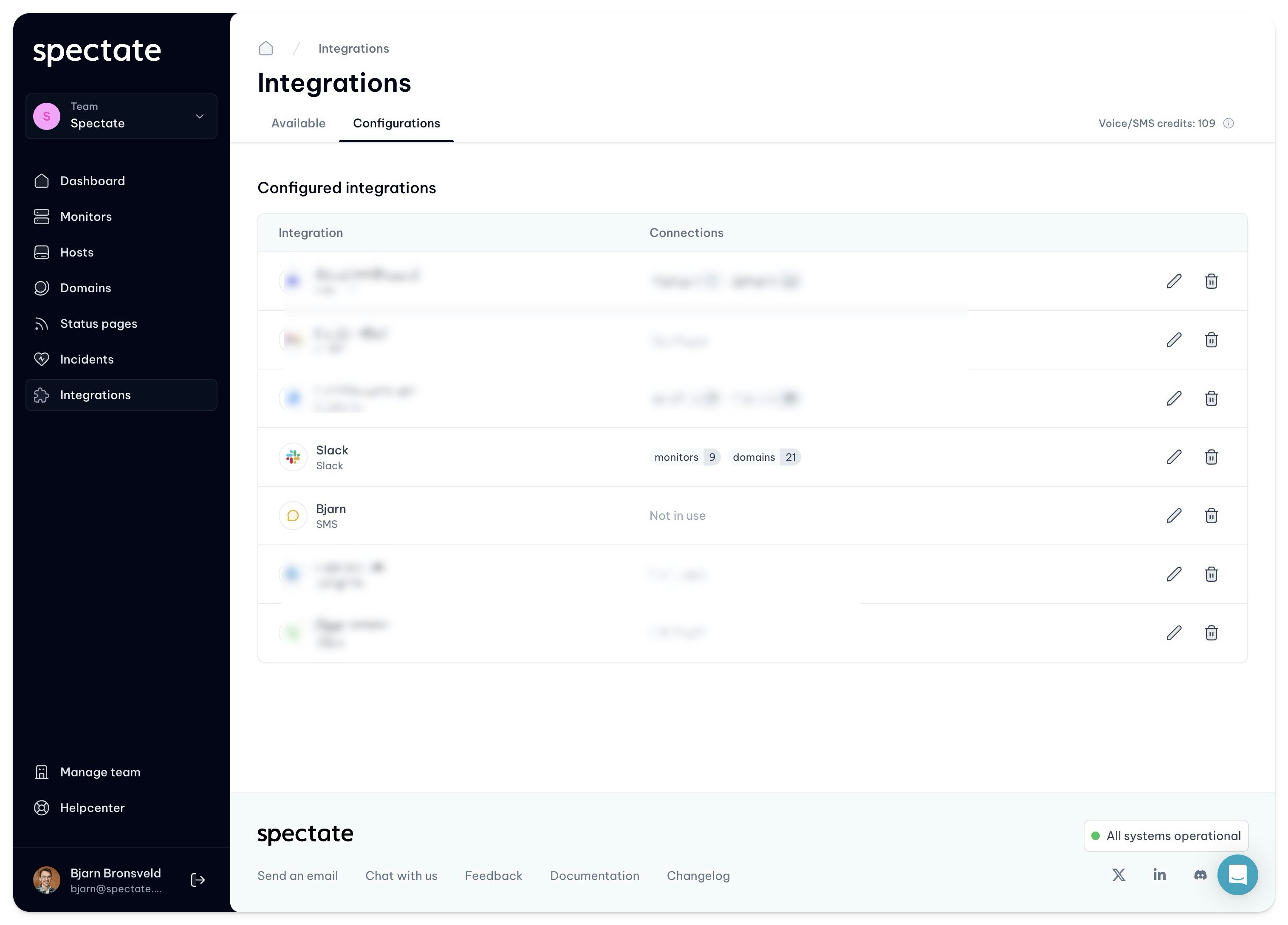
You can see all your configured integrations in the `Configurations` tab. From here, you can edit or delete an integration and see how many monitors or domains are using this integration.
 ### Available integrations
The following integrations are available:
} />
} />
} />
} />
} />
} />
} />
} />
} />
## Voice/SMS credits
Voice and SMS notifications are a paid add-on. Every time a voice notification is triggered, 2 credits is deducted from your account. Every time an SMS notification is triggered, 1 credit are deducted from your account.
In the **Pro** and **Scale** plans, you receive 25 and 100 voice/SMS credits per month respectively. Business plan users receive **unlimited** voice/SMS credits.
You can purchase additional voice and SMS credits from your team's [billing](https://app.spectate.net/team/billing) page.
## Test notifications
You can send a test notification to a notification channel to make sure it's working as expected. To do so, click three dots next to the notification channel and select **Send test notification**.
Keep in mind that sending a test notification for voice and SMS channels will deduct credits from your account. However, testing a voice channel will only deduct 1 credit instead of 2 as it sends an SMS first.
### Available integrations
The following integrations are available:
} />
} />
} />
} />
} />
} />
} />
} />
} />
## Voice/SMS credits
Voice and SMS notifications are a paid add-on. Every time a voice notification is triggered, 2 credits is deducted from your account. Every time an SMS notification is triggered, 1 credit are deducted from your account.
In the **Pro** and **Scale** plans, you receive 25 and 100 voice/SMS credits per month respectively. Business plan users receive **unlimited** voice/SMS credits.
You can purchase additional voice and SMS credits from your team's [billing](https://app.spectate.net/team/billing) page.
## Test notifications
You can send a test notification to a notification channel to make sure it's working as expected. To do so, click three dots next to the notification channel and select **Send test notification**.
Keep in mind that sending a test notification for voice and SMS channels will deduct credits from your account. However, testing a voice channel will only deduct 1 credit instead of 2 as it sends an SMS first.