> ## Documentation Index
> Fetch the complete documentation index at: https://docs.spectate.net/llms.txt
> Use this file to discover all available pages before exploring further.
# Pause and delete
## Pause a monitor
If you want to temporarily pause a monitor, you can do so from two places:
### Pause a monitor from the monitor list
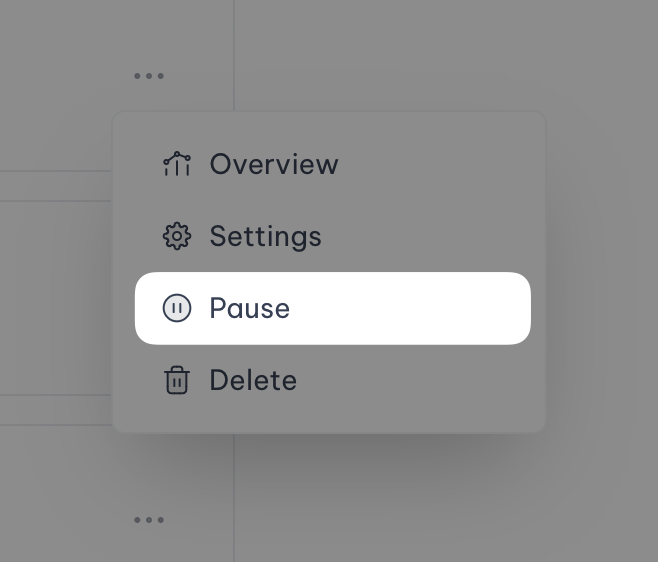
Click on the three dots next to the monitor you want to pause, and select **Pause**.
 ### Pause a monitor from the monitor details page
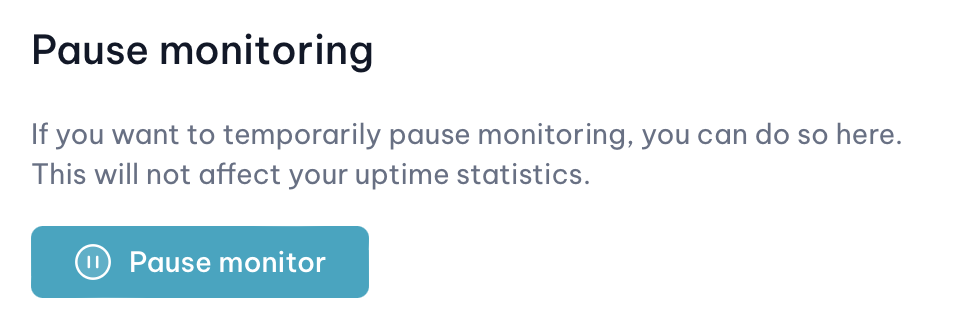
Go to the monitor's settings page. You will find the **Pause** button at the bottom of the page, above the danger zone.
### Pause a monitor from the monitor details page
Go to the monitor's settings page. You will find the **Pause** button at the bottom of the page, above the danger zone.
 ## Delete a monitor
If you want to delete a monitor, you can do so from the monitor's settings page. You will find the **Delete** button at the bottom of the page.
Deleting a monitor will also delete all of its associated data, including the monitor's history.
This action is irreversible.
You won't be able to re-add the same URI for some time until all data has been cleaned up.
## Delete a monitor
If you want to delete a monitor, you can do so from the monitor's settings page. You will find the **Delete** button at the bottom of the page.
Deleting a monitor will also delete all of its associated data, including the monitor's history.
This action is irreversible.
You won't be able to re-add the same URI for some time until all data has been cleaned up.